
TABLE OF CONTENTS
- Introduction
- Good to know
- New Export Mapping - Responses
- Clone Export Mapping
- New Export - Step by Step Guide
- Export History - Download Exported File
- Export File Details
- Access Restriction
Introduction
The In-application Export feature can be used to take data out of your system. You are able to download different kinds of Data based on your needs.
You can find the feature under Data → Exports, and it is accessible to all users of the User and Admin roles.
Good to know
General notes
- Create a Responses Export Mapping in order to use this export type.
- Make sure your applied filters reach at most 80k records.
- Data access restrictions apply - Only data accessible by the user is exportable.
Drivers notes
- While creating a mapping, all drivers (enabled and disabled) are provided.
- In the file, Drivers can have the following values:
- 0 means it was present in the survey and not selected
- 1 means the driver was selected
- An empty cell means the driver was not present for that record
New Export Mapping - Responses
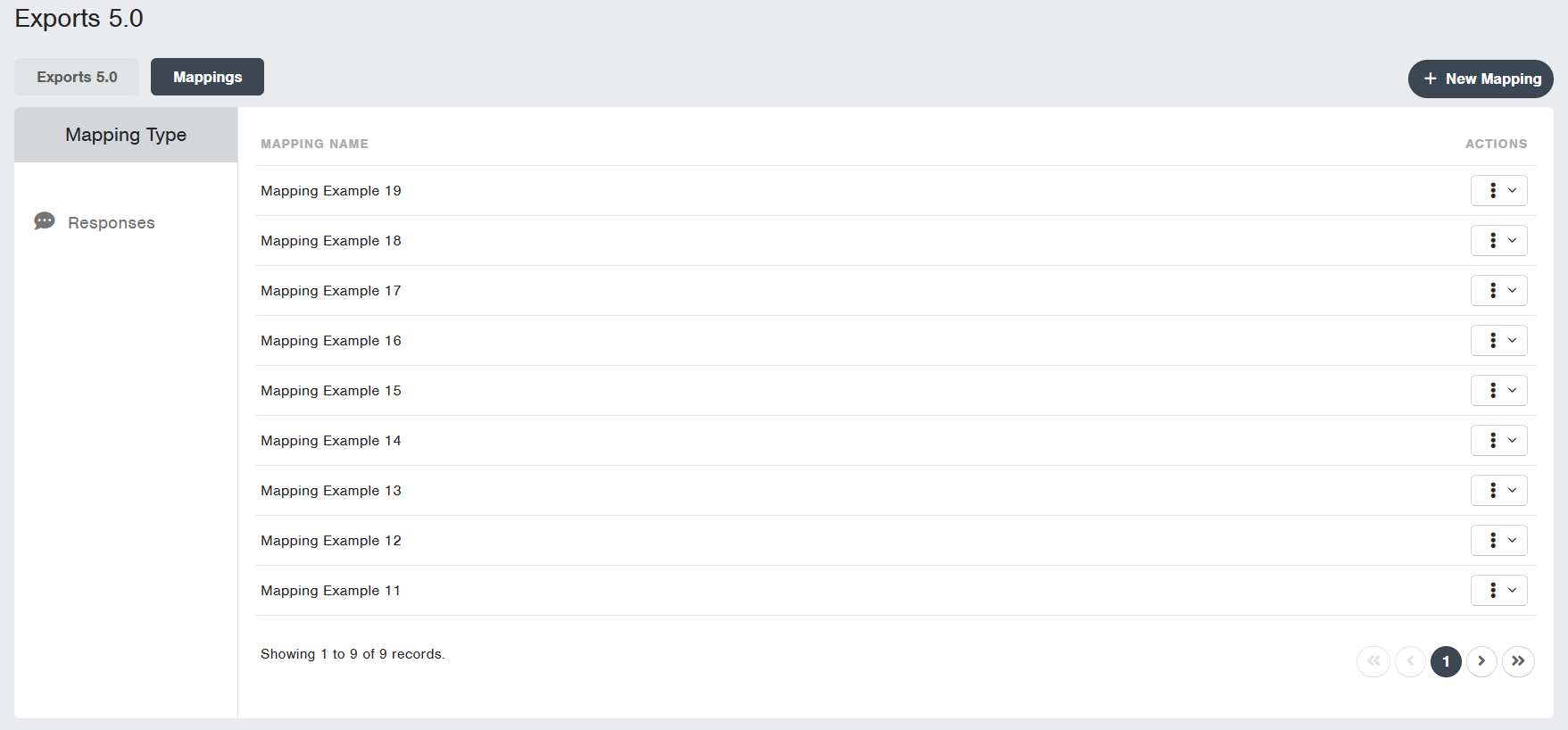
To create a new Export Mapping first navigate to Data → Exports → Mappings and click on +New Mapping
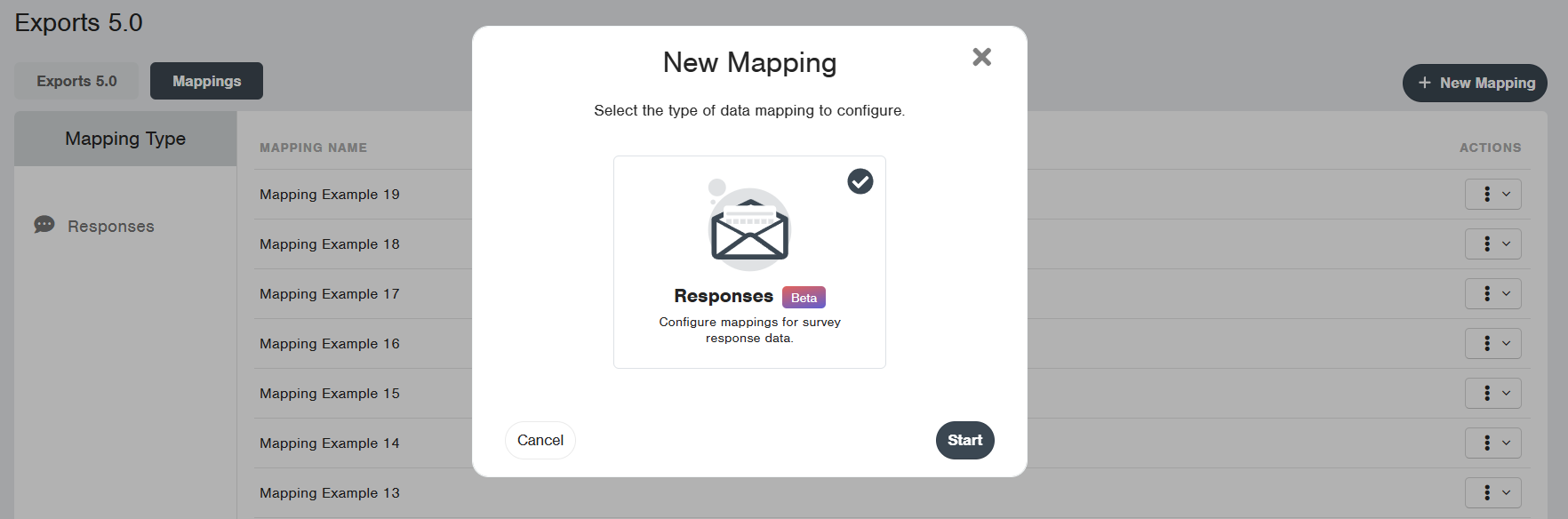
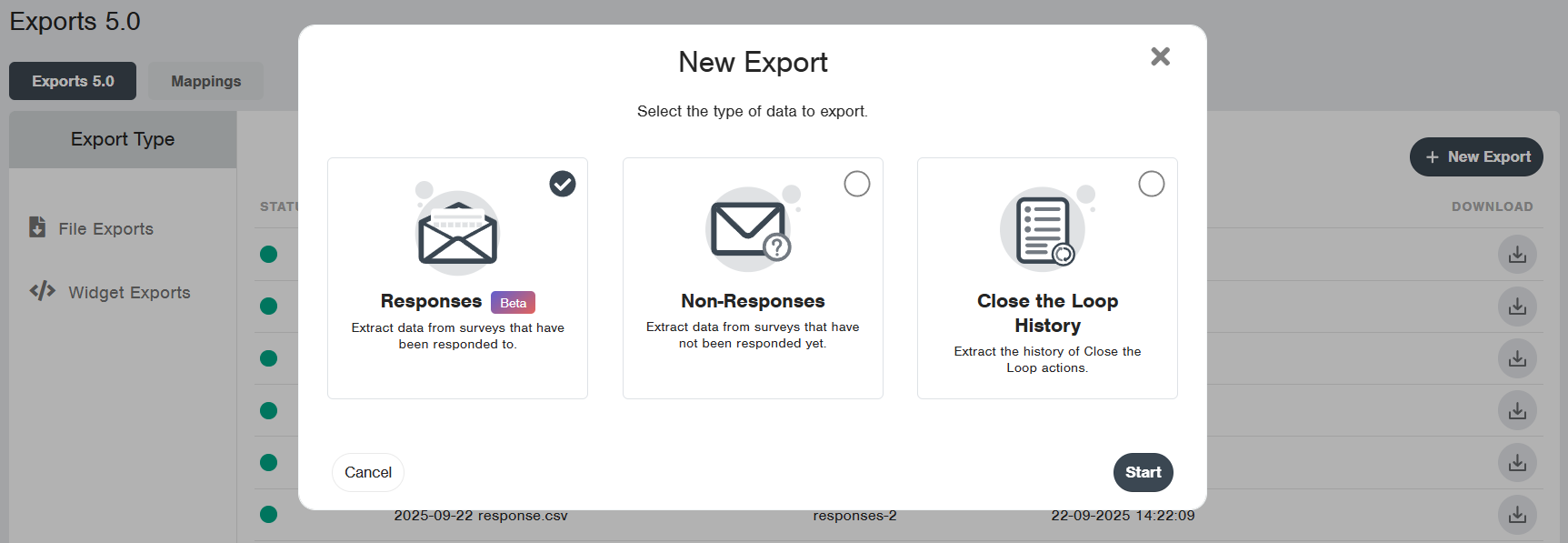
Select the Responses and then click on Start
In the creation screen, name your mapping and select all the fields you want in your exported file. Only selected fields will be exported.
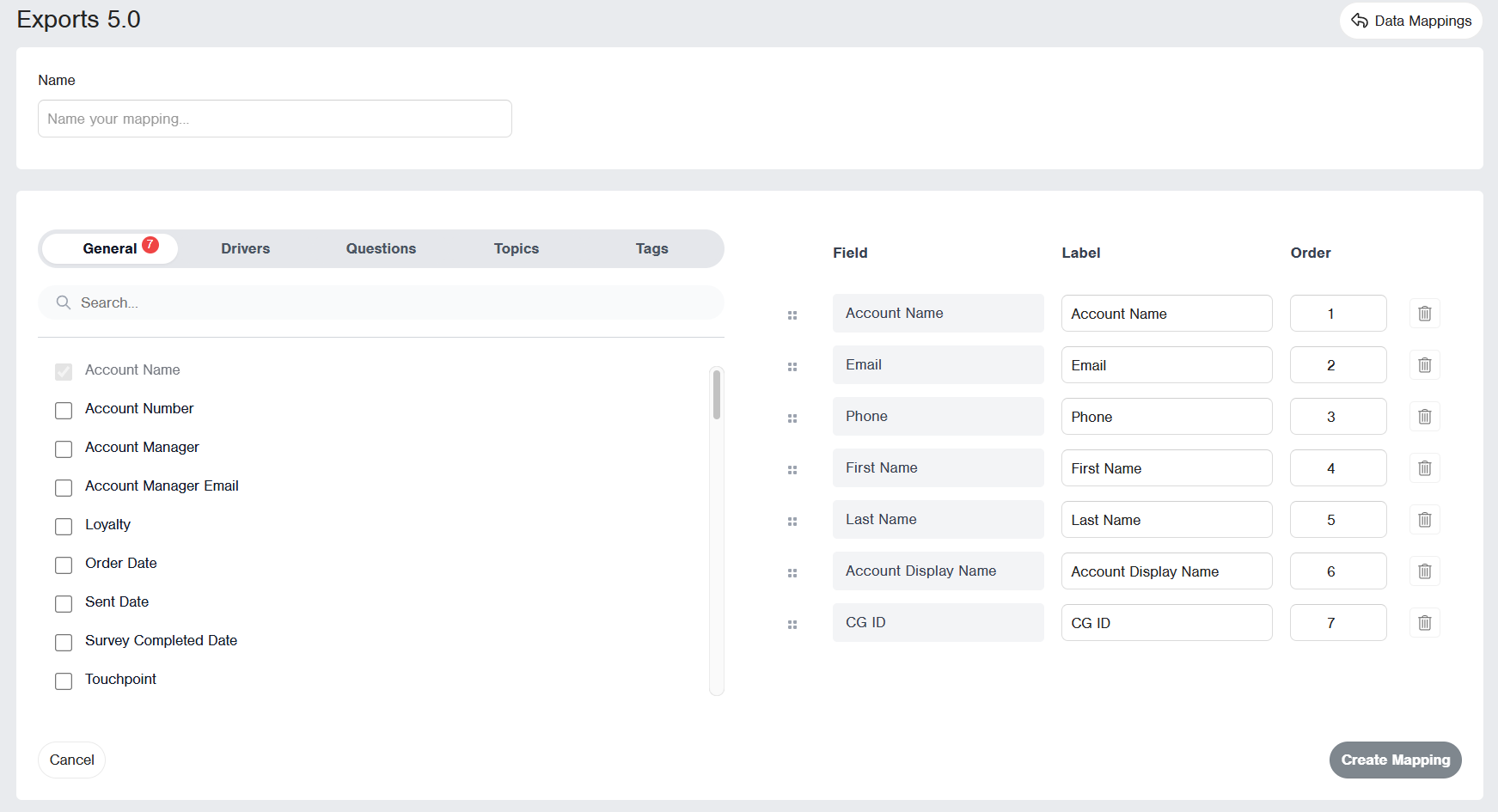
- The General fields tab shows the fields that are defined in your CG system. The overview is managed in the Fields Setting page (Admin access)
- The Drivers tab shows the drivers set up in the Driver Editor (Admin access)
- The Questions tab shows the additional questions added in the Survey Suite
- The Topics tab shows the Topics defined in the Comment Analysis Topics page (Admin access. For details, review this support article). When the Topic is tagged in the comment, the exported field shows the sentiment (Positive, Negative, Neutral, or Mixed) of the Topic. If it’s not tagged with any topics, it shows ‘-’ in the file.
- The Tags tab shows the Tags added to the platform.
The order presented on the right side will be the order of the columns in your file. You can re-order them by dragging and dropping or just changing the value of the order number. (1 equals the first column in the file). Also, you can change the Label for the fields.
With the mapping created, you have everything you need to start exporting your Responses data.
Note: all users who have access to Exports can see the list of the mappings and select any mappings, but only the user who created the mapping and System Admins are able to edit them.
Clone Export Mapping
You are able to clone any mapping available in the Export Mappings list page, this can help you save time when setting your own mapping.
1. Navigate to Data → Exports → Mappings
2. Under Actions (3 Dots) find the Clone button
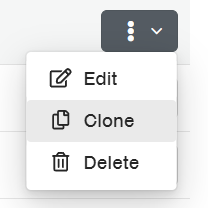
3. A pop-up will be displayed for you to make adjustments to the name of the new mapping
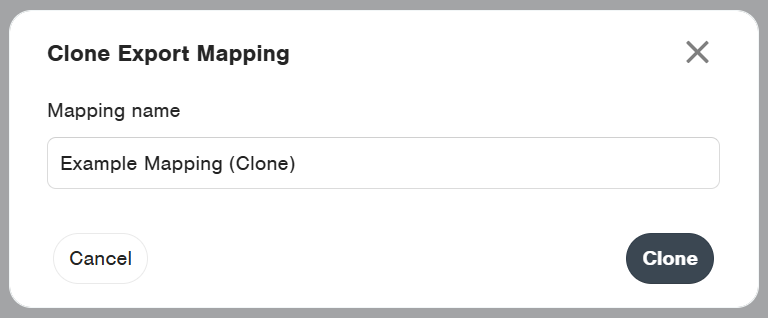
4. Once the name is set, click on Clone.
Once all these steps are finished, a new mapping with your chosen name will be added to the list, containing the same fields as the source Export Mapping.
New Export - Step by Step Guide
To start a new Export action, navigate to Data → Exports and click on the + New Export button.

Select the Responses option from the list and click Start.
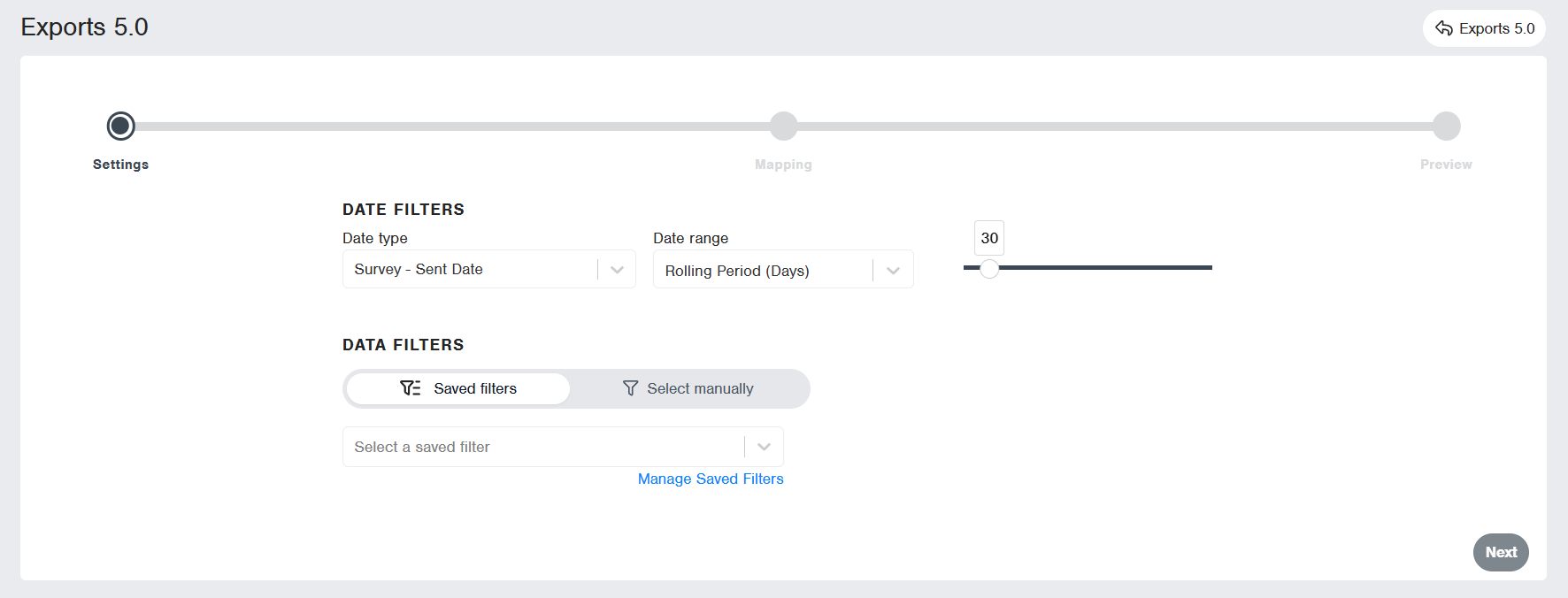
Select the Date Filters and Data Filters of your choice. You are able to select one of your Saved Filters or manually select the data filters. This section works similarly to the report filters section.
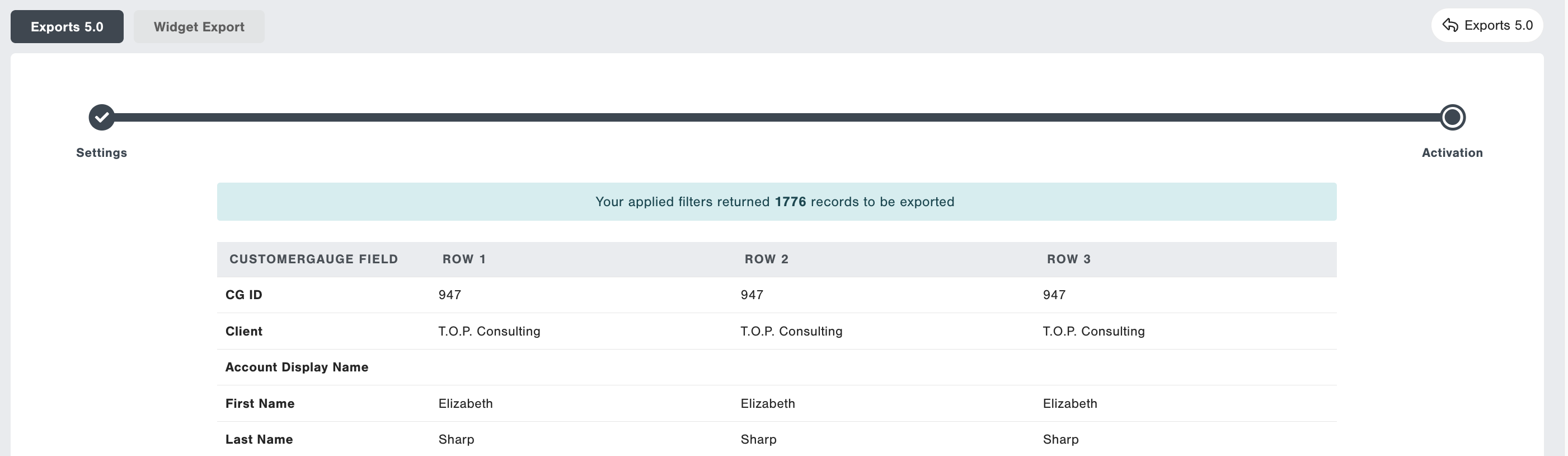
The system provides information on the number of records and a sample preview of the data that will be exported.
Click Start Export. Your export action will now begin. You are able to download your file from the export list section of the feature.
Export History - Download Exported File
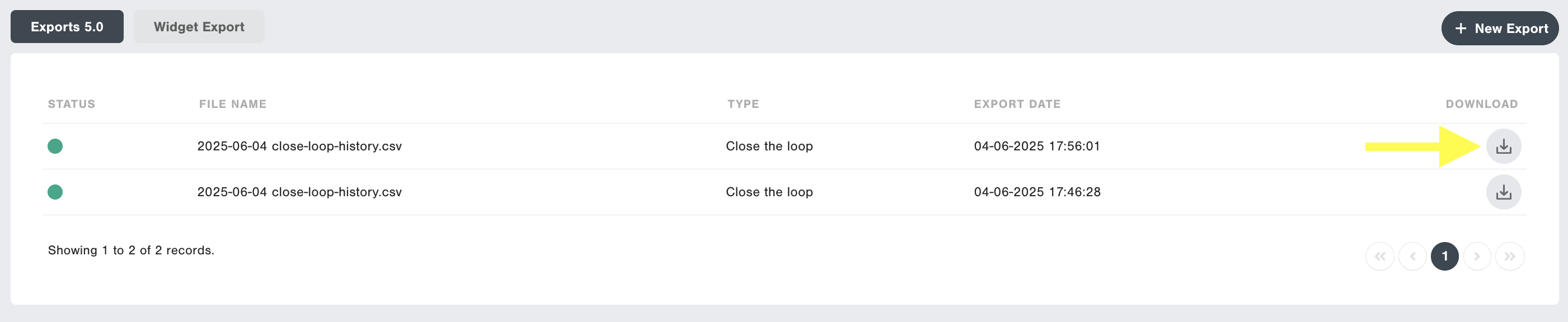
You are able to download your data file from the list. Click on the Download button visible on the screen.
The files that can be viewed in the list are user-specific. Other users will not be able to access your list of exports. Your export files will stay available for 45 days before they are removed.
Export File Details
- The file is CSV, with a "comma" or "semicolon" as CSV Delimiter. This is based on the user setting setup in the User Profile Section.
- The file can contain a maximum of 80,000 rows.
- Standard data fields that are exported. User is not able to select the list of columns to export.
Access Restriction
Data Access Restriction of the user applies. This will cause the exported file to only contain records that the user requesting the export has access to.