
Directions for Setup
Contact your Strategic Account Manager and get the optimal package for you. This is an add-on feature and must be activated by your CustomerGauge team.
Set Your Feedback AI Topics. You can customize the list of topics based on your needs. However, we recommend reviewing your selected topics with your Account Services Manager to ensure they align with your goals and optimize feature performance.
To configure your topic list, go to: Settings > System Admin > Gaugie AI > Feedback AI Topics.
- This section allows you to manage the topics that Feedback AI will scan for in NPS comments submitted via the Survey Suite. You can create, edit, activate, and deactivate up to 250 topics.
- You may also manually adjust topics by selecting Manage Topics and modifying the sentiment or topic after the AI has completed its analysis.
- Your CG Account Services manager will support you in identifying the most relevant topics during implementation
- Note: Feedback AI only processes responses submitted through the “NPS comment box” widget within Survey Suite.
- Topic Name is what Feedback AI uses to identify relevant comments.
- Reporting Label is how the topic will appear in dashboards and reporting widgets.
How Feedback AI Works
Once activated, Feedback AI will automatically analyze incoming NPS comments and apply Topic labels along with sentiment detection:
- Red – Negative
- Green – Positive
- Blue – Mixed
- Grey – Neutral
Note: Feedback AI labeling only applies to new comments received after activation. It does not apply retroactively.
The AI is capable of understanding context, even if the Topic isn’t explicitly mentioned.
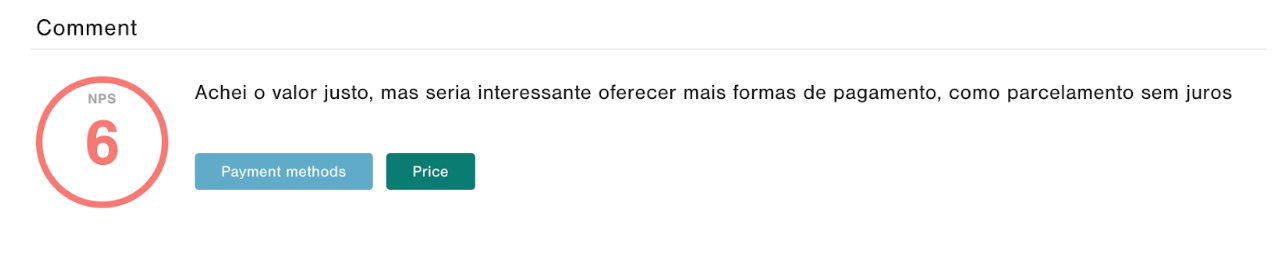
- Example 1: A comment that doesn’t mention “Delivery” directly may still be labeled under the “Delivery” topic if the context implies it.

- Example 2: A single comment may be tagged with multiple topics and their respective sentiments.
Why Sentiment Labeling Matters
Sentiment tagging offers powerful visibility - especially for identifying negative feedback from promoters, which is often overlooked.
In Example 1, even though “Delivery” is not mentioned clearly, the Feedback AI understands that the comment is related to Delivery and labels it to the Topic. As you see in Example 2, one comment can have more than one Topic.
While detractors are usually contacted first, research shows that promoters tend to spend more, making it just as important to follow up with them. With Feedback AI, you won’t miss this valuable insight
Detection only occurs for comments that have at least 5 characters and at most 2000 characters. If a comment does not satisfy this condition, it won't be analyzed by the Feedback AI.
Important Considerations
The AI analyzes comments only - scores, survey structure, or loyalty are not considered on this.
Feedback AI suggests the most accurate topic based on the comment - AI’s accuracy is around 80%
Feedback AI is a support tool to help you analyze and act on customer feedback.
The AI is continuously learning, but it is not 100% accurate - there is room for mistakes.
You can refine results by adding or updating Topics and manually tagging comments as needed.
Automate Alerts Using Workflow Rules
Want to automatically open a case or notify your team based on a topic and sentiment?
You can do this by setting up a Workflow Rule:
Go to Settings > Workflow Rules
Click + New Rule
Choose New Response
Check “Has NPS comment”
Add your desired Topic and Sentiment in the Comment Conditions area

Workflow rule based on topic/sentiment
For example, you can configure a rule to trigger an alert if a comment is labeled with the "Return" topic and has a Negative sentiment. The system will then open a case and send an alert email to the assigned team.